13 rule types
From a city-based nightly limit to risky countries, rules are defined per product.
Per-row decision
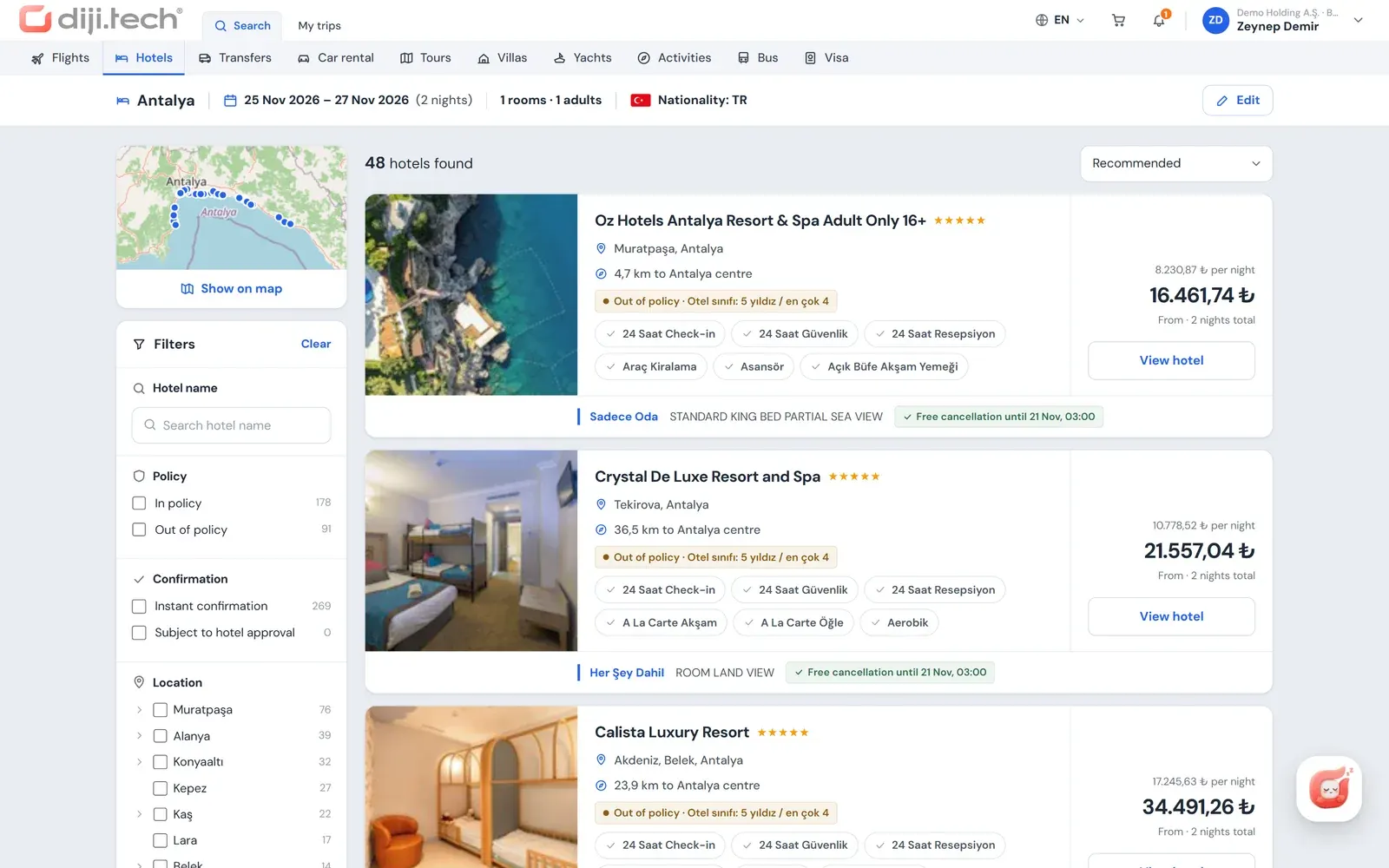
Every search result is marked within policy, out of policy or blocked.
Pilot mode
In inform-only mode no rule stops a booking; violations are only shown and recorded.
Version history
See who changed what and when, compare two versions and restore an older one.
Travel policy software lets a corporate client define its business travel rules once and apply them identically in every search, cart and submission. The rules follow the traveller, an out-of-policy choice is blocked or sent for approval, and every change is stored as a version. Within DIJI.TECH's corporate travel management software, this layer is the decision point that triggers the approval flow.
This page is written for travel agencies and TMCs. The policy screens sit in the "Policies" section of the portal that you open for your corporate client under your own brand. The client's administrator writes the rules; in the company detail of your agency panel the policy mode, the conflict rule and the active policies are shown read-only.
Who does a travel policy apply to?
A policy applies to the traveller, not to the person who makes the booking. If an assistant searches for a ticket on behalf of an executive, the results are judged by the executive's policy. Each policy is bound to one or more scopes, and everyone inside those scopes is covered.
The scope types are:
- Company: The root company and every unit below it.
- Branch: A specific company or branch in the company tree.
- Department: A chosen department, optionally together with its sub-units.
- Grade: The grade on the employee record (for example manager, specialist).
- Individual: Employees selected one by one.
The company tree and the departments are built in the company admin panel, so the policy scope does not require a separate list to maintain. The moment a new employee is added to a department, that department's policy applies to them as well.
Which policy applies when several match one person?
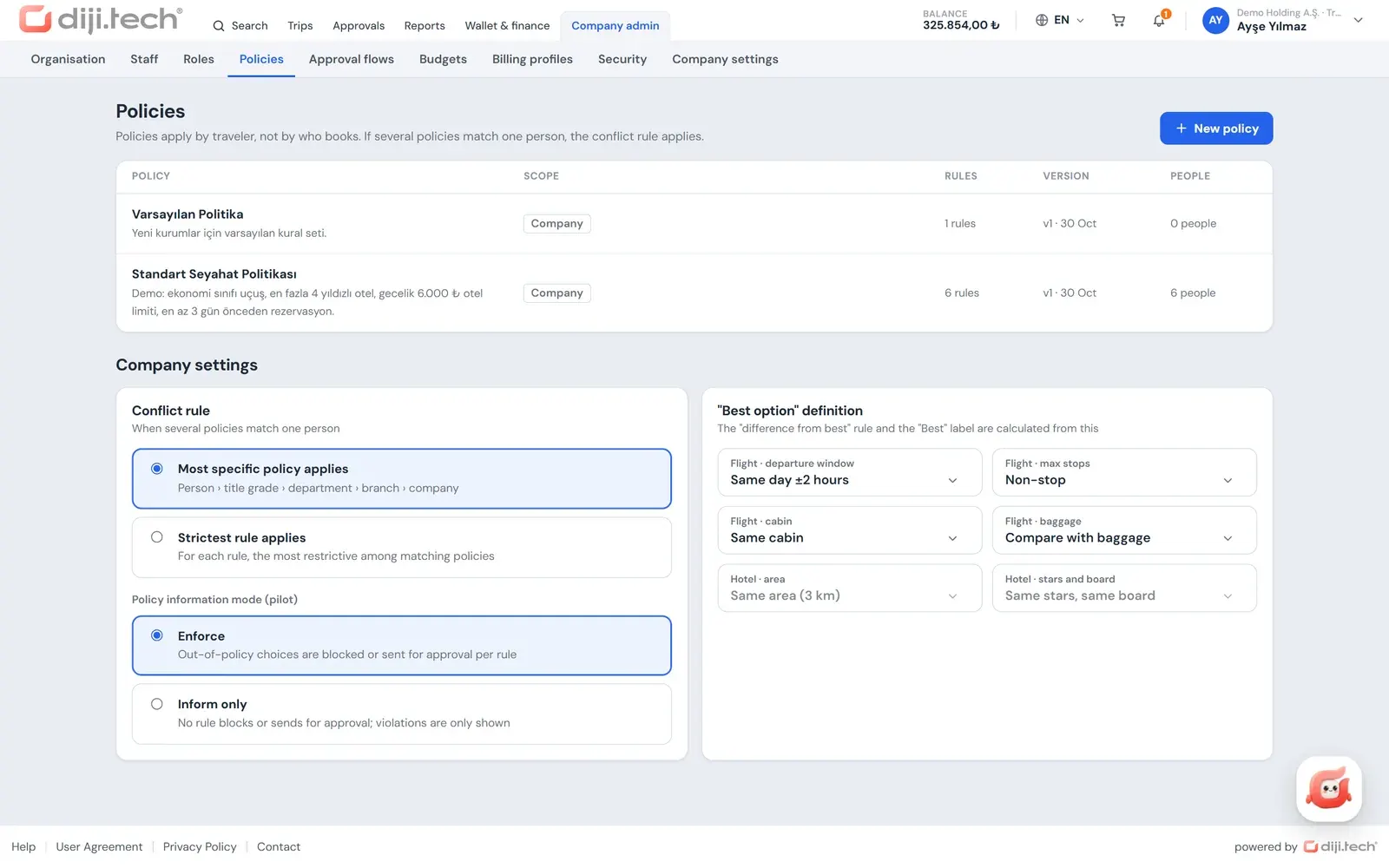
The company chooses one of two conflict rules, and the choice applies to all its policies. When a traveller belongs to both a department policy and a grade policy, the result is therefore known in advance and is resolved the same way on every request.
| Conflict rule | How it works | Best suited to |
|---|---|---|
| Most specific policy wins | The narrowest scope applies in the order individual › grade › department › branch › company | Companies that define exceptions per person or grade |
| Strictest rule wins | The rules of all matching policies are evaluated together; a violation in any of them counts | Cost-focused companies that use layered policies |
Which 13 rule types does the policy engine offer?
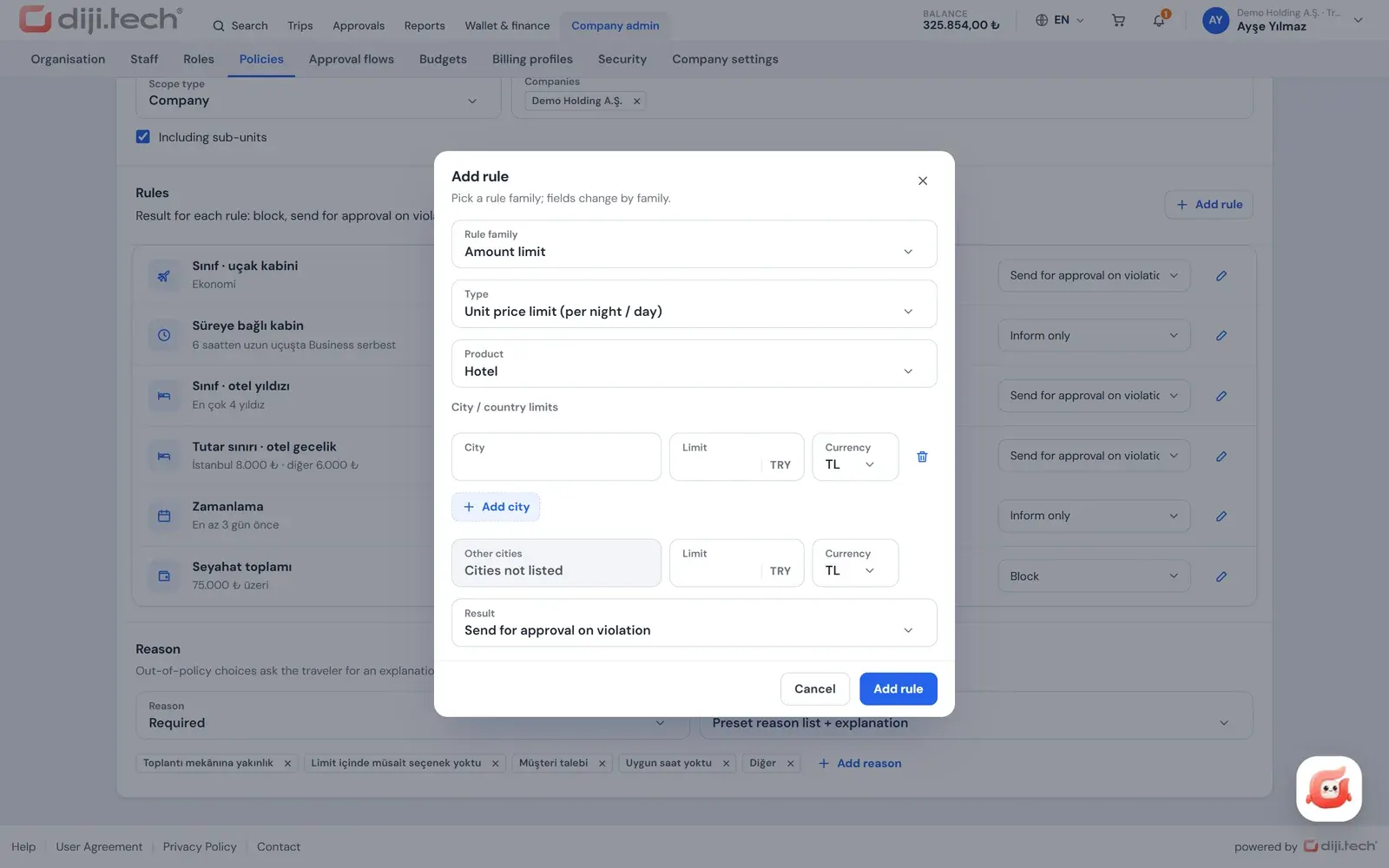
The policy engine offers 13 rule types. Each rule is bound to one product or to all products and carries its own outcome. Limit amounts are entered in TRY, USD, EUR or GBP. The examples in the table show how a rule can be used; they are not product limits.
| Rule type | Product | Setting | Example use |
|---|---|---|---|
| Unit price limit | Hotel, villa, yacht (per night); car (per day) | City-based limits plus an "other cities" limit | A higher nightly hotel limit in large cities, a lower one elsewhere |
| Amount per person | All products or one product | Amount and currency | A per-person ceiling for visas or events |
| Trip total | Whole cart | Amount and currency | A ceiling on the total cost of one trip |
| Item total | All products or one product | Amount and currency | A ceiling on a single flight or accommodation item |
| Flight cabin | Flight | Highest cabin: Economy, Premium Economy, Business, First | Economy at most for all staff |
| Cabin allowed on long flights | Flight | Duration threshold and allowed cabin | Business allowed above a certain flight duration |
| Hotel stars | Hotel | Maximum 1-5 stars | Hotels up to four stars |
| Category | Car and transfer class; yacht, tour, villa and activity type; bus seat layout | List of allowed classes | Only economy and compact classes in car rental |
| Minimum days before purchase | All products or one product | Number of days | Flight tickets bought at least a few days before travel |
| Maximum % gap to the cheapest option | All products except visa | Percentage | A chosen flight may not exceed the cheapest option by more than a set percentage |
| Banned airline | Flight | Airline codes and names | Blocking airlines the company does not use |
| Risky country | All products or one product | Country list defined by the company | Every trip to a listed country goes for approval |
| Approval on every request | All products or one product | No setting | Every trip that includes a visa goes through approval |
The category rule means different things for different products: it limits the vehicle class for cars and transfers, the product type for yachts, tours, villas and activities, and the seat layout for corporate bus tickets. Cabin rules are most used in corporate flight booking, while the city-based nightly limit and the star rule are the most common rules in corporate hotel booking.
What happens when a rule is violated?
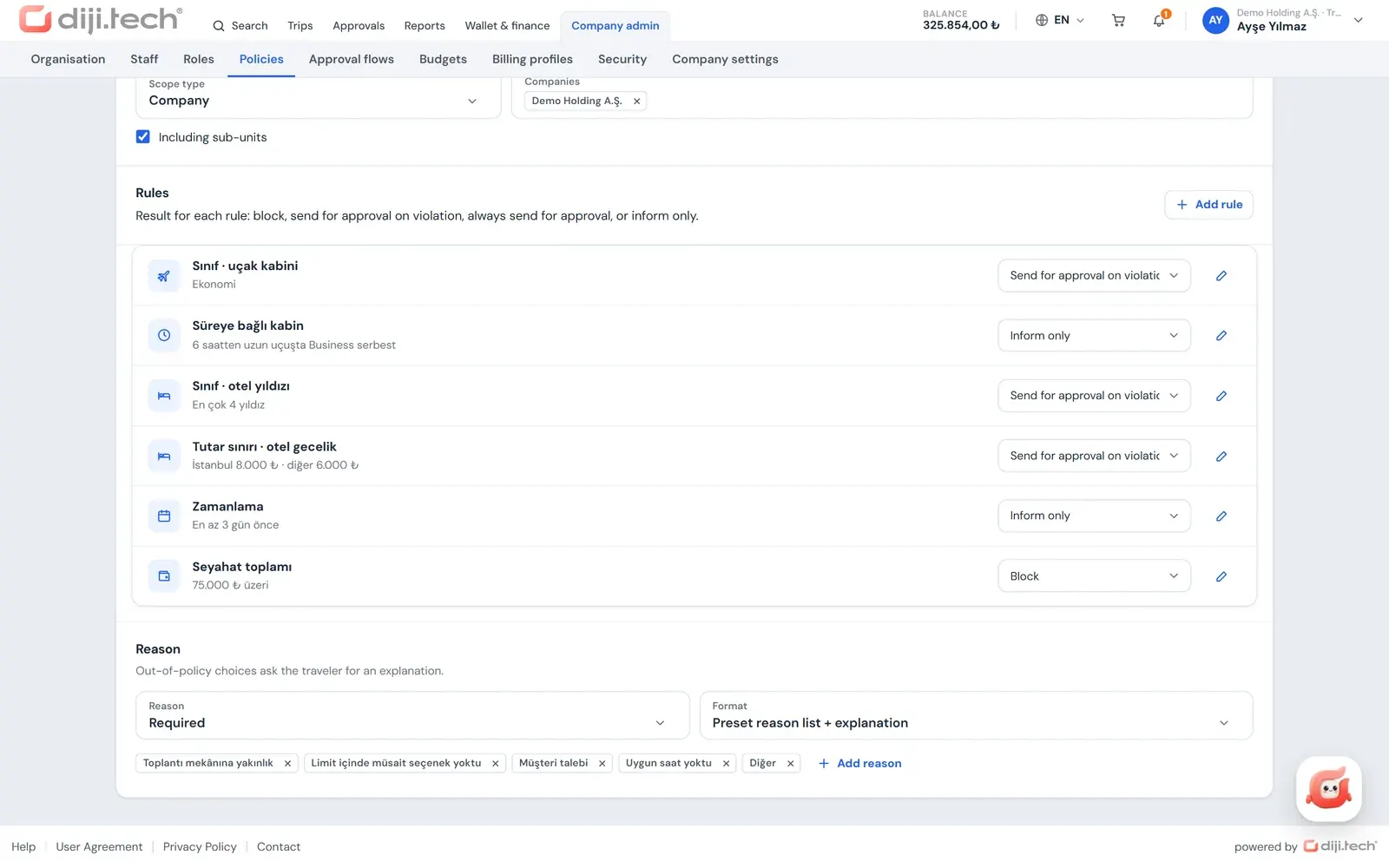
Each rule has its own outcome, so within one policy one rule can block while another only sends the booking for approval. There are four outcomes, and when a trip violates several rules the strongest outcome applies: blocking is stronger than approval, and approval is stronger than information.
| Rule outcome | What the traveller sees | What happens to the trip |
|---|---|---|
| Block | The option is marked "Blocked" | The option cannot be purchased |
| Send for approval if violated | An "Out of policy" badge with the reason | The cart goes to the approval flow |
| Always send for approval | Approval is required even if the option is within policy | The cart always goes for approval |
| Inform only | A violation badge is shown | The booking continues and the violation is recorded |
A policy mode is also chosen for the whole company. In Enforce mode the rules work according to their outcomes. The Inform only mode is meant for a pilot: no rule blocks or sends anything for approval, and violations are only displayed. When onboarding a new client, this mode shows how the rules would behave on real trips before they take effect.
How is the "best option" defined?
The "maximum % gap to the cheapest option" rule and the "Best option" label in search are calculated from the company's own definition of the best option. Without such a definition, a one-stop flight without baggage would be compared unfairly with a non-stop flight.
For flights, the definition has four settings:
- Departure window: Same day within 2 hours, within 4 hours, or the same day.
- Maximum stops: Non-stop or one stop.
- Cabin: The same cabin or any cabin.
- Baggage: Compare with baggage included or without baggage.
The default definition is the same day within 2 hours, non-stop, the same cabin and baggage included. The same definition is used in reporting: the savings report in corporate travel reporting shows the difference between the chosen option and the best option as "missed savings".
How is a justification collected for out-of-policy choices?
The company decides whether the traveller must explain an out-of-policy choice and in what format. The justification appears next to the violations in the approval detail, so the approver judges the request together with this explanation.
- Justification mode: Required, optional or not requested.
- Format: A preset reason list plus a note, free text only, or a preset reason only.
- Preset reasons: The default list contains "Close to the meeting venue", "No available option within the limit", "Client request", "No suitable time" and "Other"; the company can edit the list.
When the justification is required and the cart is out of policy, the portal does not accept the submission without one. In inform-only mode this requirement is lifted.
How does the policy appear in search results and the cart?
The policy runs before the traveller makes a choice. In search results every row shows the decision for that traveller: "Within policy", "Out of policy" with the reason, or "Blocked". The traveller can use the policy filter to list only the options within policy.
The decision is applied at these points:
- Search: A row-level decision for flights, hotels and other products; for hotels, a room-level decision in the hotel detail.
- Home page: Staff see their own rules in the "Policy that applies to you" card.
- Cart: A preliminary evaluation runs on every change, and a justification field opens for an out-of-policy item.
- Submission: The evaluation is stored permanently and the budget check runs. If there is an out-of-policy item or a budget overrun, the portal chooses the "Send for approval" path by itself; otherwise it chooses "Buy".
When your agency staff sell through agent-assisted corporate booking, the policy is evaluated as well. These sales do not go for approval; the violation is recorded and appears as a separate channel in the policy compliance report.
How are policy changes tracked?
Every time a policy is saved, a new version is created. The version history shows how the rules changed over time and how many requests each version judged, which answers the internal-audit question "what was the rule on that date?".
- Version history: Date, the person who made the change, the change note and the number of requests judged by the version.
- Comparison: Two versions open side by side and the changed rules are highlighted.
- Restore: An earlier version can be published again.
- Open requests: Requests waiting for approval continue to be judged by the version they were created under.
The publisher and the date of each policy version are kept as an audit trail. For process suggestions aimed at preventing abuse, see preventing abuse in staff travel.
Which policy does a new company start with?
When an agency opens a new company with the company wizard, a "Default Policy" is created automatically. It covers the whole company with its sub-units and contains a single rule: a per-person amount limit for visas. When the limit is exceeded the request is not blocked but sent for approval. For companies imported in bulk from Excel or CSV this policy is not created; the company administrator defines the policy in the portal.
If you want a point-by-point template for writing the policy text inside the company, the corporate travel policy creation guide maps the template clauses to these 13 rule types.
What is missing from the policy engine?
The policy engine has no preferred airline rule, no policy deletion or archiving, no policy badge on tour, villa and yacht detail pages, and no e-mail alert for a violation.
- There is no preferred airline rule; there is only a banned airline rule.
- There is no policy deletion or archiving; policies are updated through versions.
- Tour, villa and yacht detail pages do not show a policy badge; the evaluation happens in the cart and at submission.
- No e-mail or SMS alert is sent for a policy violation; "alert" means the badge in search and in the cart. Violations are followed on the dashboard and in the policy compliance report.
How do policy, approval and budget work together?
The policy decides which trip goes for approval; the approval flow decides who decides, in which order and within what time; the budget protects the periodic spending ceiling. All three are evaluated together in the same submission.
For approval steps, amount bands and approval by e-mail, see travel approval workflow; for periodic ceilings per department and branch, see travel budget control. To see the policy engine with the rules of your own corporate clients, request a demo.
Screens
1 / 4
2 / 4
3 / 4
4 / 4
Screens are taken from the DIJI.TECH corporate portal and agency panel and show sample data.
Frequently asked questions
What is travel policy software?
Travel policy software defines a company's business travel rules in a system and applies them automatically to every booking. In the corporate portal the rules are evaluated in search results, in the cart and at submission; an out-of-policy choice is blocked, sent for approval or only recorded, depending on the outcome of the rule.
Does the policy apply to the person booking or to the traveller?
It applies to the traveller. When an assistant books on behalf of an executive, the rules are evaluated against the executive's scope, not the assistant's. Bookings made on behalf of someone else therefore stay bound to the same policy.
How many rule types are there?
There are 13 rule types: unit price limit (city based), amount per person, trip total, item total, flight cabin, cabin allowed on long flights, hotel stars, category, minimum days before purchase, maximum percentage gap to the cheapest option, banned airline, risky country and approval on every request.
Which policy wins when several match the same person?
The company picks one of two conflict rules. With the most specific policy rule, the narrowest scope applies in this order: individual, grade, department, branch, company. With the strictest rule, the rules of every matching policy are evaluated together and a violation in any of them decides the outcome, so the most restrictive rule applies in practice.
Can a policy be tried out without enforcing it?
Yes. The inform-only mode in the company settings is meant for a pilot. In this mode no rule blocks a booking or sends it for approval; violations appear only as badges and records. When the company is ready, it switches to enforce mode.
Can the traveller be asked for a justification when booking out of policy?
Yes. The justification can be set to required, optional or not requested, and its format can be a preset reason list plus a note, free text only, or a preset reason only. When it is required and the cart is out of policy, the cart cannot be submitted without a justification.
Can a preferred airline rule be defined?
No. The policy engine has no preferred airline rule, only a banned airline rule. You can mark specific airlines as not allowed, but there is no rule that promotes or mandates an airline.
What happens to pending requests when the policy changes?
Every save creates a new version. Open requests waiting for approval keep being judged by the version they were created under, and the new version applies only to later requests. The version history shows the date, the person who changed it, the note and the number of requests judged by each version.
Which policy does a newly created company start with?
When an agency creates a company with the new company wizard, a default policy is created automatically. It covers the whole company and contains a per-person limit for visas; when the limit is exceeded the request is not blocked but sent for approval. Companies created through bulk import do not get this default policy.
Related pages
Last updated: