Same cart as the flight
Transfer, flight and hotel sit in one trip file, and the approver sees them all in a single request.
Vehicle class rule
A category rule defines the allowed transfer classes; a higher class can be opened only to selected grades.
Price tolerance
The price is fetched again at final approval; a difference beyond the tolerance sends the request back to approval.
Invoiced to the company
The transfer is invoiced to the legal entity through the billing profile chosen at booking.
Ground transport is the most forgotten link of a business trip. The flight is chosen under policy and the hotel goes through approval, but the car from the airport to the meeting is often arranged by phone and invoiced separately. Kurumsal.pro brings that link into the portal. In the portal your agency gives its corporate clients, employees add the transfer to the same cart as the flight and hotel, and the company's policy, approval flow and billing profile work for the transfer too.
What does the corporate transfer module do?
The corporate transfer module lets employees search for transfers between airports, hotels and addresses in the portal, choose according to company rules, and send them to approval or purchase together with the other trip items. On the agency side, transfer sales are managed through the same corporate channel, with a client-specific price and service fee.
Within the portal that comes with the DIJI.TECH corporate travel management software, the transfer is one of the product tabs next to flights and hotels; it is not a separate system. Visible products are switched on and off per client by the agency, so transfers can be open for one corporate client and closed for another.
How does an employee search for and choose a transfer?
In the search form the employee picks one-way or round trip, types an airport, hotel or address into the pick-up and drop-off fields and marks the location by its coordinates. After entering date and time, the return time for round trips, and the number of passengers and bags, the suitable vehicles are listed.
Every row in the results is a vehicle offer and shows the following together:
| What the row shows | What it is used for |
|---|---|
| Vehicle class and vehicle name | Compared with the company's allowed-class rule |
| Maximum passengers and luggage | Shows whether the group and bags fit |
| Vehicle amenities | Features listed by the supplier |
| Cancellation terms | Free-cancellation period or non-refundable notice |
| Price per vehicle | Amount calculated with the client's price tier |
| Policy badge | In policy, out of policy with the reason, or blocked |
The list can be filtered by vehicle type and by free cancellation, and a policy filter shows only in-policy offers. The chosen vehicle is added to the cart and becomes an item of the trip file. If an employee searches for a colleague, they open the cart in that person's name within their authority; the policy always applies to the passenger, not to the person making the booking.
How is a transfer tied to the travel policy?
A transfer is evaluated against the company's travel policy rules at search time. The rule that matters most for transfers is the category rule, which lists the allowed transfer vehicle classes. Rules on amount per person, trip total, minimum days before purchase and percentage difference from the best option also apply to the transfer item.
Of the thirteen rule types in the policy engine, these are the ones that bear directly on transfers:
| Rule | Use for transfers |
|---|---|
| Category | Allowed vehicle classes (for example economy and standard) |
| Amount per person | Upper limit for the transfer price per passenger |
| Item total | Total limit for a single transfer item |
| Trip total | Limit for the whole cart, including flight, hotel and transfer |
| Minimum days before purchase | Routes last-minute bookings to approval |
| Maximum % difference from the best option | Requires a reason or approval for the pricier choice |
| Risky country | Blocks or routes bookings in selected countries to approval |
| Approval on every request | Always shows the transfer to the approver |
What happens when a choice breaks a rule is decided by the company per rule: the choice can be blocked, sent to approval only if the rule is violated or in every case, or just shown as information. The scope can be the company, a branch, a department, a grade or a person. That way, for example, a higher vehicle class can be allowed only for one grade while the same choice needs a reason and approval for everyone else. The details of building rules are on the travel policy management page.
How does a transfer enter the same approval as the flight and hotel?
The transfer goes to approval as one request together with the other cart items; the portal's principle is one trip, one approval. If the cart is within policy and budget, the path is "Purchase"; if an item is out of policy or the budget is exceeded, the path turns to "Send for approval" automatically.
In a cart that goes to approval, the employee writes a reason for the out-of-policy item, and if the policy version makes the reason mandatory, a submission without one is not accepted. When the approver opens the request, the transfer appears on the same screen as the flight and hotel, with the reason for the violation and its difference from the best option. Where the flow allows it, the approver can mark another option as an alternative for the transfer item.
The transfer price is not held during approval. When the final approval is given, the price is fetched again; a difference within the percentage tolerance the company defined for transfers in the approval flow (between 0 and 50) does not stop the purchase, and a larger difference sends the request back to approval. Approval levels, delegation and one-click approval by email are covered on the travel approval workflow page.
How do payment, invoicing and documents work?
The transfer is paid from the prepaid company wallet that the agency opens for the client, or, where the agency permits it, by card with 3D Secure. The invoice is issued to the company through the billing profile selected in the cart, and the trip file produces a voucher PDF, a travel plan PDF and an invoice PDF.
The main points on the payment and document side:
- Card payment: Done through a 3D Secure redirect, card details are not stored, and the charge is a single payment.
- Approved cart: In a cart that goes to approval, the purchase is started from the company wallet at final approval; if it cannot be completed, an authorised person finishes it with the "Complete purchase" step.
- Billing profile: Defined per company or branch with an e-Invoice or e-Archive type (the Turkish electronic invoice formats); the recipient is always a legal entity.
- Documents: The voucher and the invoice carry the agency's brand and are generated from the stored record.
Transfer sales pass through the agency's accounting document line. The SYS feed includes the transfer product, and a sale made in a corporate context is invoiced to that company as a business customer. Payment routes and the invoicing model are explained on the corporate travel payments and invoicing page, and accounting connections on the accounting integrations page.
How does the agency manage transfer sales?
The agency sets the transfer price for each client in the client price form: the transfer line is split into domestic and international, and each line takes a service fee, a hidden markup and a commission. Supplier, net price and markup fields are removed from portal responses, so the corporate client sees only its own price.
Other tools on the agency side:
- Detailed rule engine: Client-specific service fee rules are defined per booking or per passenger, as a fixed amount or a percentage; subsidiaries and branches inherit the rule.
- Agent-assisted booking: For a request that arrives by phone or email, the agency staff member selects the client and the person in the panel, searches the transfer at the client's price and sells it. See the agent-assisted booking page for details.
- Quote PDF: Transfer options can be turned into a quote document with the seller's logo and sent to the client.
- Cancellation and change requests: Requests from the portal reach the agency as "requests" in the operations queue.
Which transfer suppliers are connected?
The corporate portal uses the transfer suppliers the agency already uses in its panel, with the same search, cart and purchase objects; no separate supplier connection is needed for the corporate channel. The transfer suppliers registered on the platform are PaxDrive, ProGo, Tourer, Hotelbeds, Paximum and the agency's own transfer inventory. Which of them is active is decided at setup, according to the agency's accounts.
| Supplier | Type |
|---|---|
| PaxDrive | Transfer supplier |
| ProGo | Transfer supplier |
| Tourer | Transfer supplier |
| Hotelbeds | Hotel wholesaler that also offers transfer content |
| Paximum | Supplier platform covering flights, hotels and transfers |
| The agency's own inventory | The agency's own vehicles and transfer products |
The corporate client does not see the supplier name; it sees the result and its own price. This separation protects the agency's supplier relationship and margin. The supplier lists of all modules are on the integrations page.
How is a transfer followed in the trip file?
Every transfer that is bought or sent for approval stays in the employee's trip file under My Trips as an item. The file shows the item status, approval history, the result of the policy check, the price breakdown and payment note, the passengers, the chosen billing profile, documents and request history together.
The My Trips list is divided into upcoming, in approval, past and cancelled tabs, and it can be searched by file number, title, date range and product filter. Managers and roles that book for others see the trips of the employees in their scope on the same screen, labelled "Trips". The request status screen shows whether a transfer in approval is waiting, approved, rejected or has exceeded the price tolerance.
How does transfer data appear in reports?
Purchased transfers enter the company's reports with a product breakdown. In the spend report the transfer share can be followed by department, branch and person; in the sales breakdown every transfer item is listed with fee, service fee and VAT columns. The carbon report calculates the transfer by multiplying estimated kilometres by a vehicle class coefficient.
Carbon figures are shown on screen with a note that they are estimates. Every report that contains transfer data can be downloaded as Excel, CSV or PDF; in scheduled monthly or weekly report emails each recipient sees only the transfers in their own role scope. The whole report set is described on the corporate travel reporting page.
Who are corporate transfers for?
The module is designed for travel agencies that provide arrival transfers and city transport for their corporate clients in addition to flights and hotels. For clients with heavy meeting, trade-fair and site-visit traffic, the transfer becomes part of the approved trip instead of a separate stream of phone calls, and the company sees ground transport spend in the same report as the other items.
The choice between a transfer and a daily car rental usually depends on the shape of the journey. For a short point-to-point ride the transfer is the natural fit; for a programme with several addresses in one day a rental car stands out. How the two are managed together is covered in the blog post on car rental and transfer processes, and the car side is on the corporate car rental page.
To see the transfer flow with your own client scenarios, you can request a session through the DIJI.TECH demo page. Setup takes about one week on average, and pricing is set by a quote prepared for your needs.
Screens
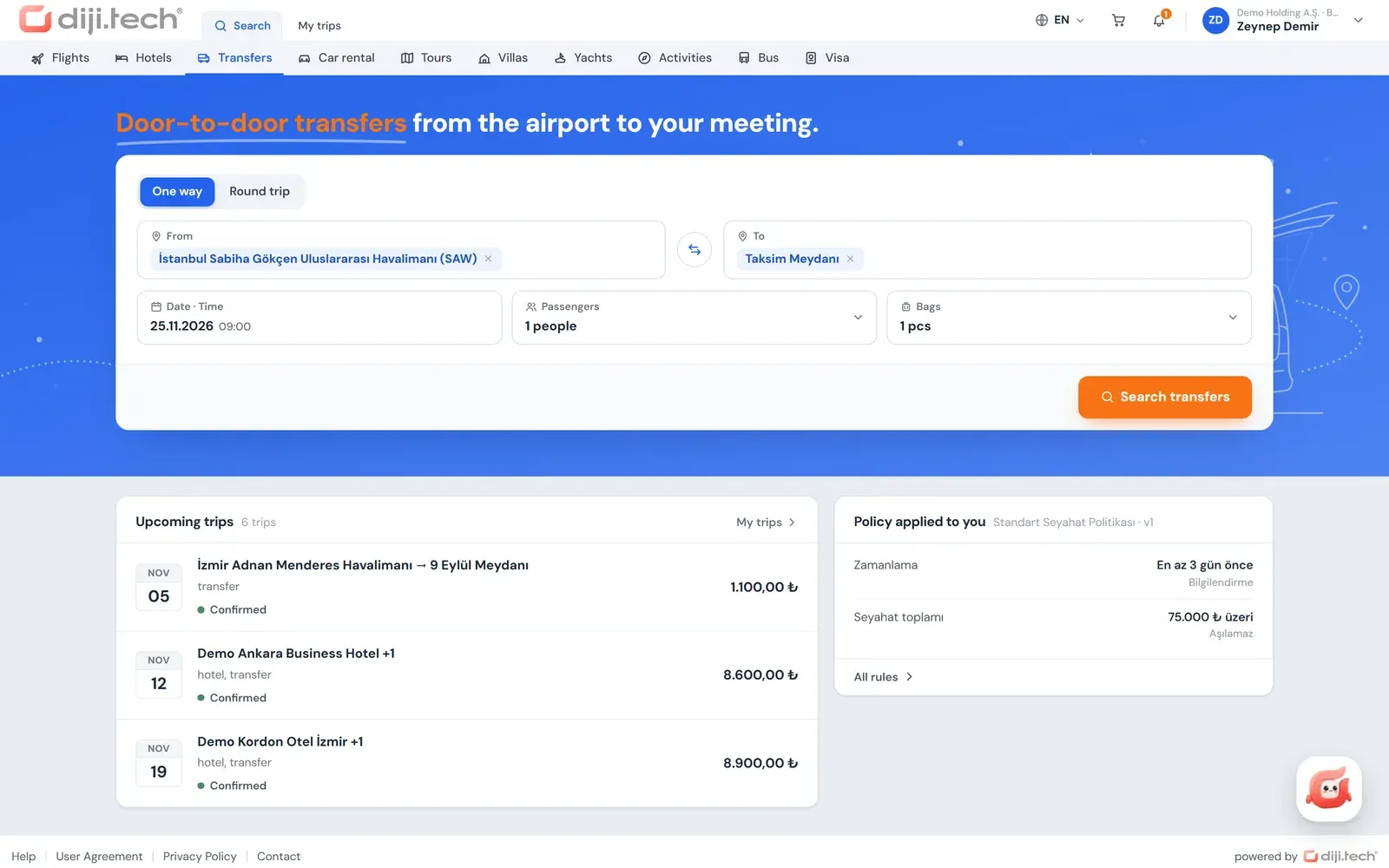
1 / 2
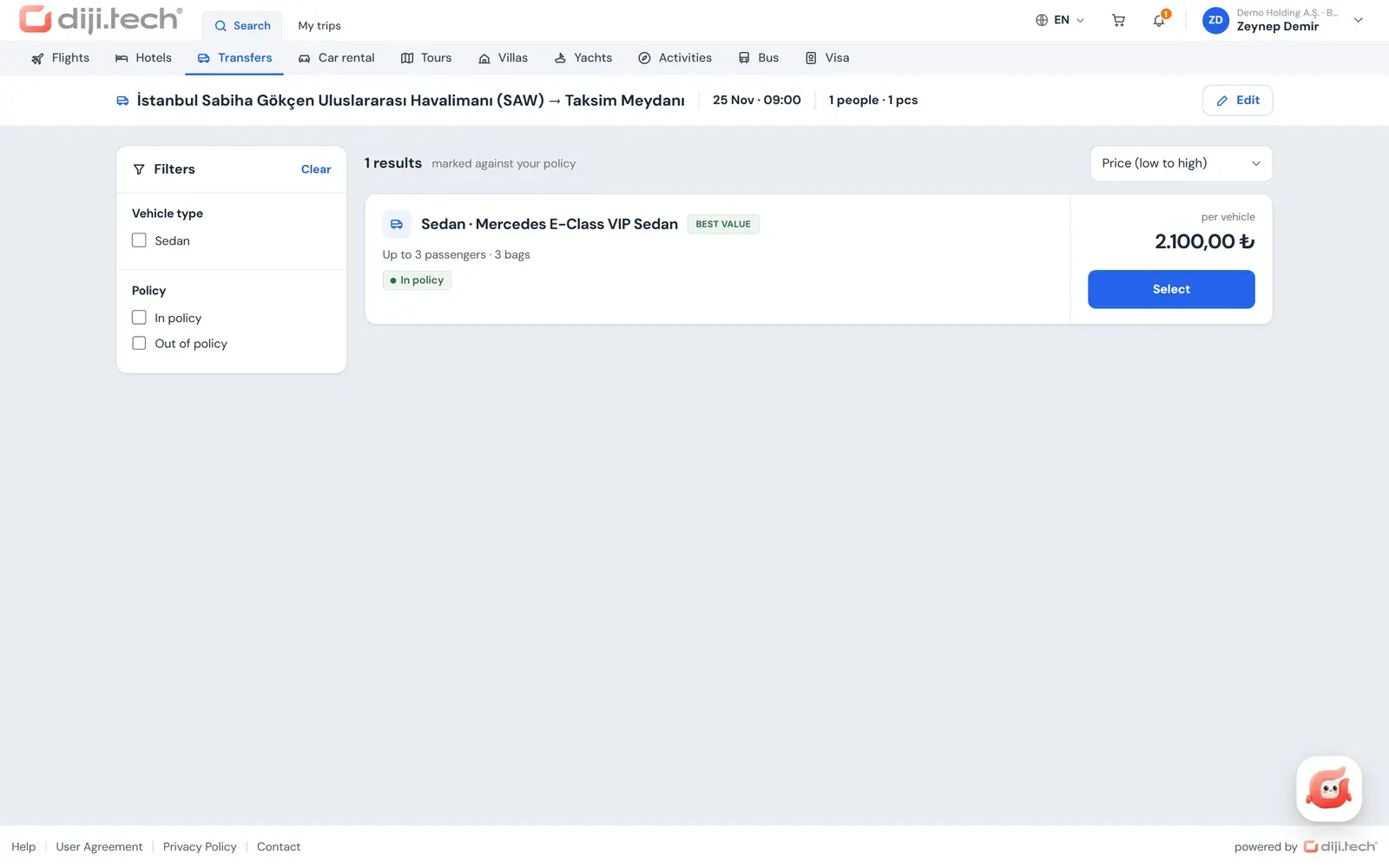
2 / 2
Screens are taken from the DIJI.TECH corporate portal and agency panel and show sample data.
Frequently asked questions
What is the corporate transfer module?
It is the section of the portal your agency gives its corporate clients where airport, hotel and address transfers are searched and added to the cart. The transfer stays in the same trip cart as the flight and hotel, and the company's travel policy, approval flow and billing profile apply to it as well.
What details are needed to search for a transfer?
The traveller picks one-way or round trip, types an airport, hotel or address into the pick-up and drop-off fields and selects the location with its coordinates. Then the outbound date and time, the return date and time for round trips, and the number of passengers and bags are entered.
Can the company control which vehicle class is used?
Yes. The category rule in the travel policy lists the allowed transfer vehicle classes. Because a policy scope can be set per grade, department, branch or person, a higher class can be opened only to certain grades; a choice outside the list is blocked or sent to approval, depending on the rule's outcome.
Is the transfer price fixed during approval?
No. The transfer price is not held while the request waits; it is fetched again when the final approval arrives. A difference within the percentage tolerance the company defined for transfers does not stop the purchase, while a larger difference sends the request back to approval.
How is a transfer paid for?
Payment is made from the prepaid company wallet your agency opens for the client, or by card with 3D Secure where the agency allows it. Card details are not stored and the charge is a single payment. For a cart that goes to approval, the purchase is started from the company wallet at final approval.
Who is the transfer invoiced to?
To the billing profile the traveller selected in the cart, or to the company's default profile if none was selected. The recipient is always a legal entity, with the company name, tax number and office, address and invoice email taken from the profile. Corporate sales pass through the same accounting document line as the agency's other sales.
Can a transfer be cancelled from the portal?
The traveller opens a cancellation request and sees a preview of the penalty and refund based on the stored cancellation terms. The request lands in the agency's operations desk, and the agency performs the actual cancellation with the supplier. The free-cancellation information in the search result lets the traveller see the terms before buying.
Can the driver or vehicle be tracked in the portal?
No. The portal has no vehicle or driver location tracking. The transfer details are in the trip file and on the voucher PDF; where travellers are during a trip can be followed from the Who is where report, which is based on confirmed travel records.
Related pages
Last updated: