Actions and scopes
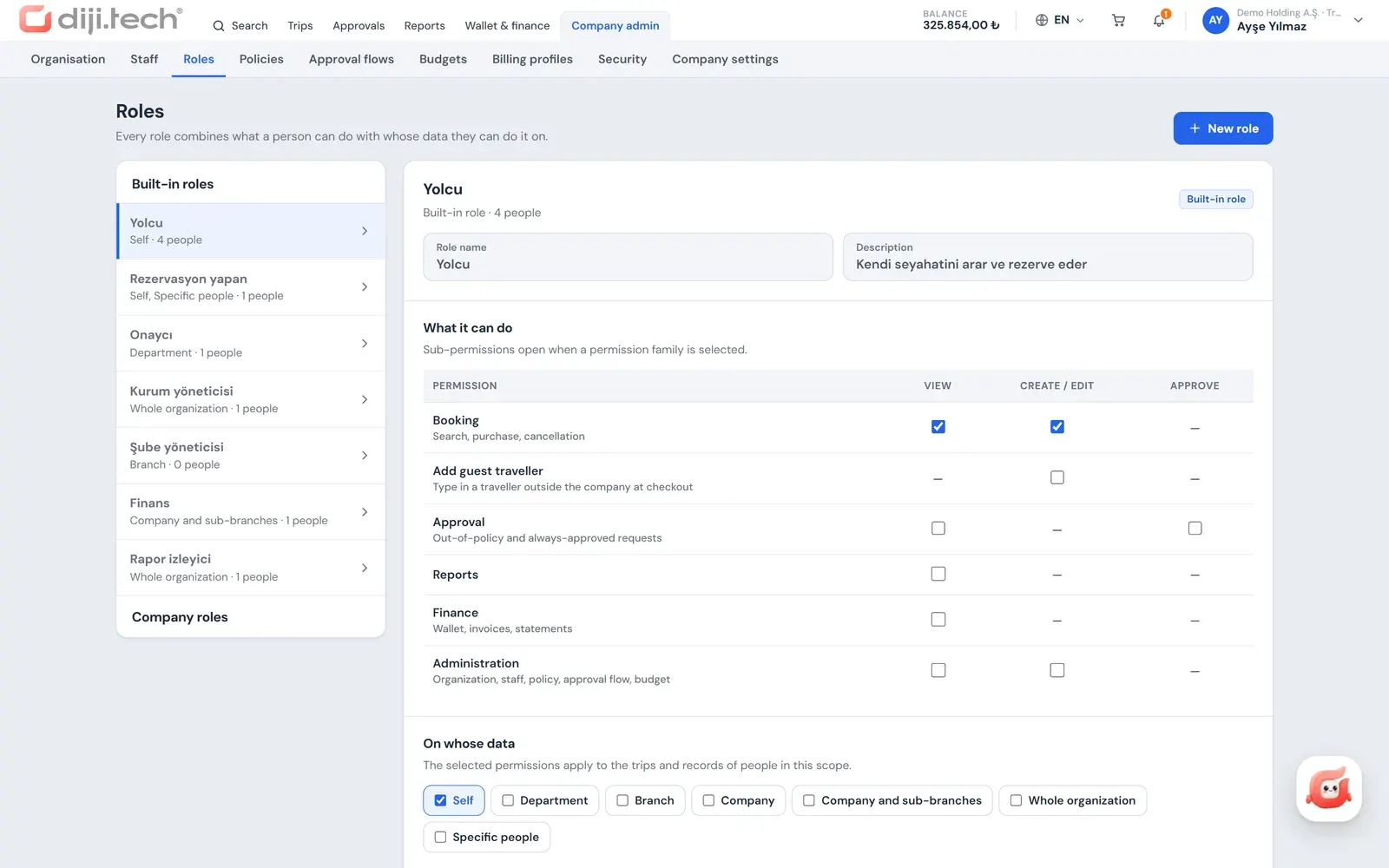
A role defines separately what can be done and whose data it can be done on.
Company and department tree
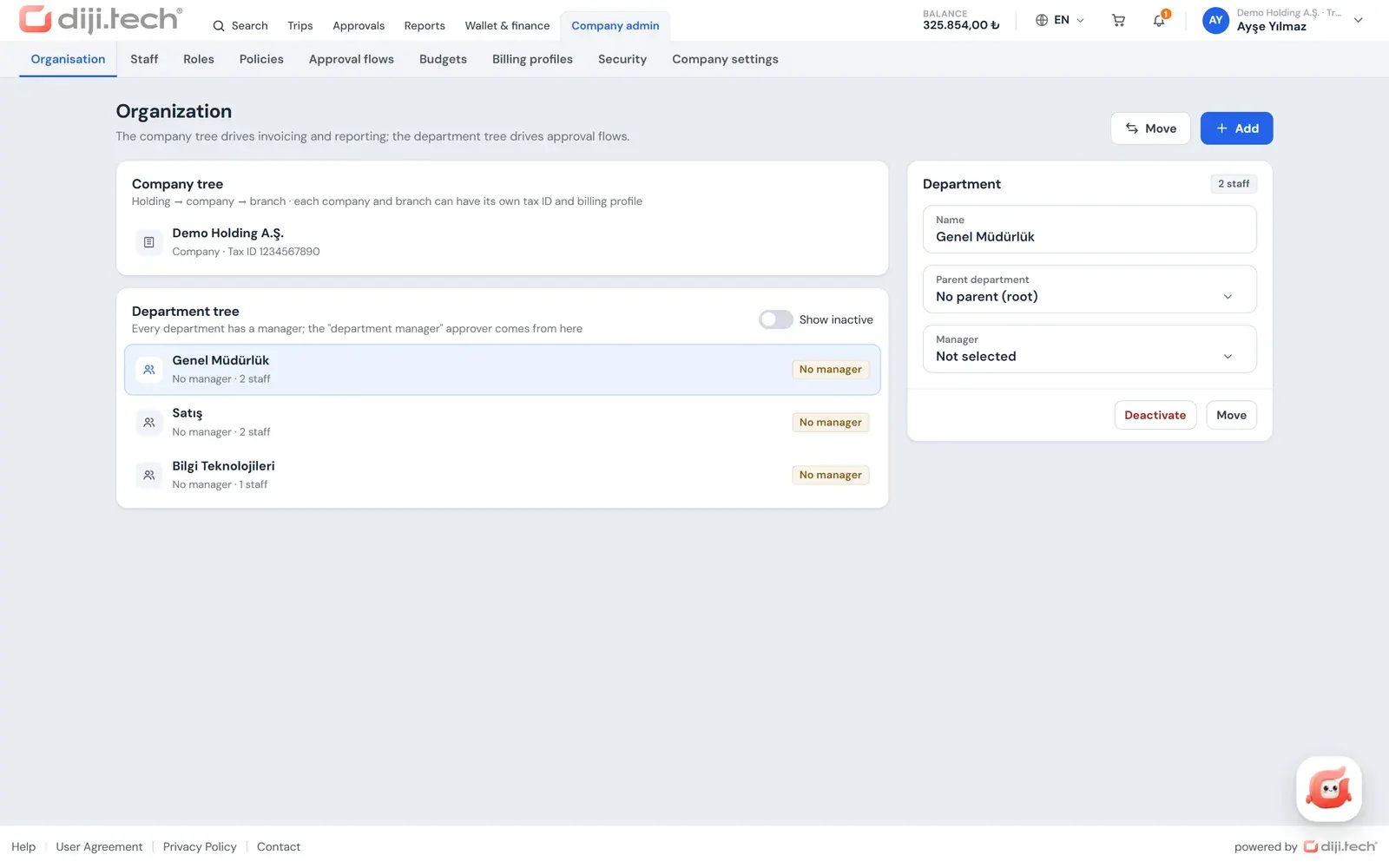
Holding, company and branch levels and department managers are handled on a single screen.
Bulk upload from Excel
A file of up to 5,000 rows is split into new, updated and invalid rows before you confirm.
2FA by role
Two-factor authentication is required by role, and the idle session timeout is set company-wide.
Giving a corporate client a travel portal starts with carrying that company's structure into the system correctly: who books on whose behalf, who approves, who sees the invoice, which branch works with which billing details. In Kurumsal.pro these questions are answered not by the agency but by the client's own administrator. The Company management area of the DIJI.TECH-based portal lets the company administrator manage roles, the organization tree and staff independently, while the agency follows the same definitions from the company detail in its own panel.
What is the company admin panel and who is it for?
The company admin panel is the area of the corporate portal that opens to users with management permission. Organization, staff, roles, billing profiles, security, travel policies, approval flows and budgets are defined here. The menu is drawn according to the person's role, so only authorized users see the management screens.
It is mostly used by a company administrator appointed from the client's travel desk, HR or finance team. When the agency opens a new company, the first company administrator receives an invitation; after signing in, that person builds the organization and adds the rest of the staff. The agency's company-creation wizard is described on the corporate travel agency software page.
How does the role and permission model work?
Every role in the portal answers two questions: what can the person do, and on whose data can they do it. "What" is chosen from nine actions and "whose data" from seven data scopes. For example, an approver role carries the view-approvals and approve actions at department scope; if the same actions are granted at company scope, the role sees the requests of the whole company.
| Permission family | Actions |
|---|---|
| Booking | View; create and edit (search, purchase, cancellation request); add guest traveler |
| Approval | View; approve |
| Reports | View |
| Finance | View (wallet, invoices, statement) |
| Administration | View; edit (organization, staff, policy, approval flow, budget) |
The data scopes run from narrow to wide: Self, Specific people, Their department, Their branch, Their company, Their company and sub-branches, Entire organization.
One person can hold several roles. The person's actions then all work with the widest scope among those roles; the system does not keep a separate scope per action. Before combining a wide-scope reporting role with a narrow-scope booking role on the same person, make sure the result is the access you intend.
What are the preset roles?
Seven preset roles are created automatically for each company at setup. They cover the most common division of duties in corporate travel and cannot be deleted or renamed. The table below shows each role's default actions, scope and two-factor authentication (2FA) requirement.
| Preset role | What it does | Scope | 2FA (default) |
|---|---|---|---|
| Traveler | Searches and books their own trips | Self | Optional |
| Booker | Books on behalf of specific people, adds guest travelers | Self and specific people | Optional |
| Approver | Sees and approves the requests of their department | Their department | Required |
| Company admin | All nine actions | Entire organization | Required, cannot be turned off |
| Branch admin | Sees their branch's trips, books, approves and follows reports | Their branch | Optional |
| Finance | Follows wallet, invoices, statement and reports | Their company and sub-branches | Required |
| Report viewer | Views reports | Entire organization | Optional |
The Branch admin role does not include administration or finance actions; the person who will manage the branch's organization or wallet is given a separate role that does.
How are custom roles created and deleted?
A custom role is created either by taking a preset role as a template or by starting from an empty role. The administrator changes the actions and scope, picks people one by one under the "Specific people" scope, and saves the role. For example, a "Branch finance officer" role can be built from the Finance template with the scope narrowed to the branch.
A role that carries the approve action cannot have the "Self" scope; the combination is rejected with a "No self-approval" warning. Either remove the "Self" scope from the role or remove the approval permission. When a custom role is deleted, it is also removed from everyone who held it. The effect of the remaining roles can be checked from the staff screen.
How are the company tree and departments set up?
The company tree has holding, company and branch levels, and each node holds a tax identification number. The department tree sits inside it, defined with a department manager and a headcount; departments without a manager are flagged with a warning. These two trees are the basis of the "Their department" and "Their branch" scopes in roles.
The administrator adds departments, moves them under another parent department, deactivates and reactivates them, and a placement that would create a loop is blocked during a move. When a department is deactivated its staff are moved to the target department you choose, so nobody is left without a department. Companies and branches can be added and edited. Deleting or deactivating a company or branch, and deleting a department, are not available in the portal; when the structure changes, units are reorganized instead.
What changes for holdings and multi-company groups?
In a multi-company group the company tree carries several companies and branches under a single root. Branches inherit the parent company's Turkish Airlines corporate code, billing profiles are separated by company or branch, and for policy conflicts you choose between "the most specific policy applies" and "the strictest rule applies".
The Finance preset role's "Their company and sub-branches" scope suits a company finance team that needs to see its own branches. Reports are also available broken down by company and branch. Moving a holding group to managed travel is covered in depth in the post on online travel reservation systems for holdings.
What are billing profiles and seniority levels for?
A billing profile decides which legal entity's details a booking is invoiced to. Profiles are defined per company or branch; each carries an e-Fatura or e-Arşiv type (Turkey's electronic invoice and electronic archive invoice formats) and an invoice email, one is marked as default, and unused profiles are made inactive. A default billing profile is assigned to each staff record, and another can be chosen at booking when needed.
The seniority level is kept on the staff record and used as a scope in travel policy. That way different cabin or nightly hotel limits can apply to different levels within the same department. The concept is explained in the billing profile entry and the invoicing structure on the corporate travel payments and invoicing page.
How is staff added to the portal?
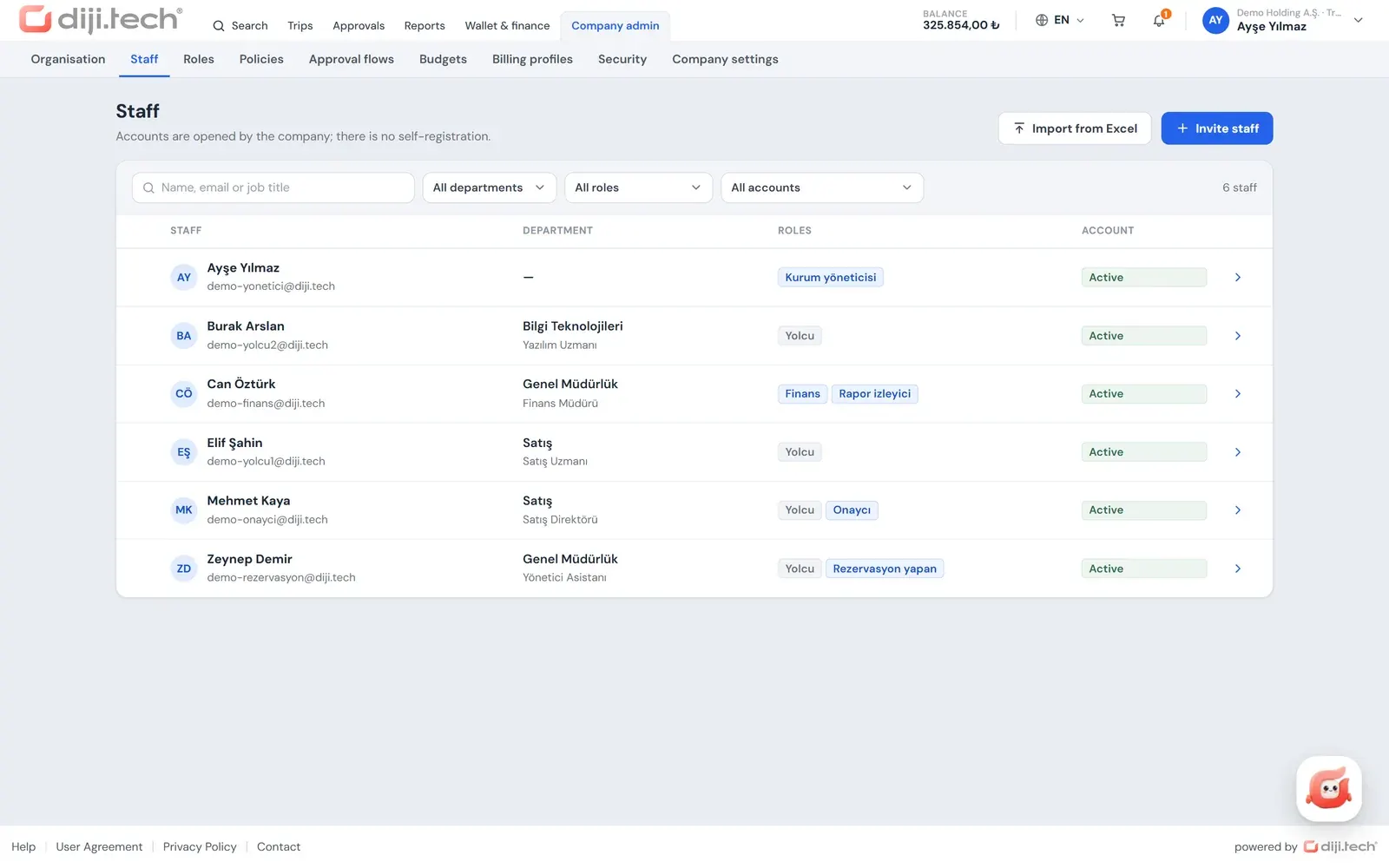
Staff are added in two ways: one by one by invitation, or in bulk with the Excel template. An invitation takes first name, last name, work email, department, manager and roles; the email address must match the company's list of allowed domains. For people who will never sign in, there is an option to create a traveler profile only, without opening an account.
Bulk upload runs in this order:
- The administrator downloads and fills in the Excel (.xlsx) staff template.
- They upload the file; a single file accepts up to 5,000 rows.
- The system produces a validation report: new rows, rows to be updated, invalid rows and any new departments that would be created are listed, and the invalid rows can be downloaded as a CSV.
- The administrator confirms the report and the records are written.
An invitation link is valid for 7 days by default; the invited person ticks the KVKK consent box and sets a password to open the account. KVKK is Turkey's personal data protection law, and the consent step is part of every account activation. There is no self-registration in the portal. HR software integration, directory sync with SCIM and single sign-on (SSO) are not ready-made features; how staff data can be moved out of HR systems is discussed for information only in the post on HR software and travel management.
What does a staff record contain and which account actions exist?
A staff record consists of first name, last name, ID number, email, phone, date of birth, company or branch, department, title, manager, seniority level, default billing profile and roles. The ID number is masked and read-only on the administrator's screen. The staff list narrows by name search and by department, role and account status filters.
Account statuses are tracked as Active, Invitation pending, No account and Closed. From the staff detail the administrator can:
- unlock the account,
- resend the invitation,
- reset two-factor authentication,
- close the account and reopen it when needed.
Closing an account takes effect immediately and cannot be scheduled for a later date. Passport, document and loyalty card details are kept by the staff member in their own profile; those tabs are not visible on the administrator's screen.
What does the home dashboard show the administrator?
For the Company admin, Finance and Report viewer roles the home page opens as a management dashboard. It shows indicators such as spend, policy compliance percentage, the number of pending approvals and average approval time, and wallet balance, along with budget usage bars, the latest policy violations and a warning when the wallet balance falls below its threshold.
People in the Approver role see their pending approvals on the home page. The indicators are examined in detail on the eleven report and summary screens; the list of reports is on the corporate travel reporting page.
What are the company security settings?
From the security screen the company administrator sets the two-factor authentication requirement for preset roles and the idle session timeout, which applies company-wide. By default 2FA is required for Company admin, Finance and Approver, and it cannot be switched off for Company admin. The idle timeout is chosen from 15, 30 or 60 minutes.
For custom roles the 2FA requirement follows the role's own setting. Two-factor authentication uses a 6-digit code from an authenticator app, and staff can also sign in without a password using a passkey. With default settings, 5 failed attempts in a row lock the account for 15 minutes. Details are on the security page and in the two-factor authentication entry.
Where are policy, approval, budget and payment settings managed?
Travel policies, approval flows and budgets are defined in the same Company management area by users with administration edit permission. The organization and staff definitions are the foundation of those rules: policy scopes, approval steps and budget units use the tree, seniority levels and role structure described on this page.
- Travel policies: 13 rule types applied by company, branch, department, seniority level or person; detail on travel policy software.
- Approval flows: sequential or parallel steps, delegates, amount bands; detail on travel approval workflow.
- Budgets: periodic ceilings for a department, company or branch; detail on corporate travel budget control.
- Card payment: switching card payment on or off in the portal, to the extent the agency and platform allow it.
What does the company admin panel give the agency?
The company admin panel leaves the client's day-to-day administration to the client's own team. A new employee, a department change, a role assignment and a policy update are all made on the company side. The agency sees the company tree and staff in the company detail in its panel and follows policy, approval flow and budget definitions as a read-only summary, so its team can spend its time on sales and operations.
This structure is offered under the agency's own brand on the infrastructure of DIJI.TECH's corporate travel management software. The staff-facing side of the portal is described on the self booking tool page. To see the screens on a sample company you can request a demo.
Screens
1 / 3
2 / 3
3 / 3
Screens are taken from the DIJI.TECH corporate portal and agency panel and show sample data.
Frequently asked questions
What is the company admin panel?
It is the Company management area of the portal your agency gives its corporate client. The company administrator uses it to manage the organization tree, departments, billing profiles, roles, staff accounts, travel policies, approval flows, budgets and security settings.
How many preset roles does the portal have?
Seven preset roles are created automatically for each company: Traveler, Booker, Approver, Company admin, Branch admin, Finance and Report viewer. Preset roles cannot be deleted or renamed; custom roles are created by taking one of them as a template.
How many staff can be uploaded from Excel?
A single Excel file can contain up to 5,000 rows. The system validates the file first and reports new rows, rows to be updated, invalid rows and any new departments that would be created, and gives the invalid rows as a CSV. Records are written only after the administrator confirms.
Are staff records imported automatically from an HR system?
No. HR software integration, directory sync with SCIM and single sign-on (SSO) are not ready-made features of the portal. Staff are added and updated one by one by invitation or in bulk with the Excel template.
Can one person hold several roles?
Yes. A person can be assigned several roles. In that case all of the person's actions work with the widest data scope among their roles; a separate scope is not kept for each action. Roles should be designed with that rule in mind.
How is the account of a departing employee closed?
The company administrator closes the account from the staff detail, and a closed account can be reopened if needed. Closing takes effect immediately and cannot be scheduled for a later date. Unlocking, resending the invitation and resetting 2FA are on the same screen.
Can a company or branch be deleted?
No. Companies and branches can be added and edited, and departments can be deactivated and reactivated. Deleting or deactivating a company or branch, and deleting a department, are not available in the portal; when a department is deactivated its staff are moved to another department you choose.
Which roles must use two-factor authentication?
By default it is required for the Company admin, Finance and Approver roles, and for Company admin it cannot be switched off. The company administrator can turn the requirement on or off for the other preset roles; for custom roles the requirement follows the role's own setting.
Can staff register themselves in the portal?
No. Self-registration is deliberately absent; accounts are opened by the company administrator or the agency. The invited person gives KVKK consent (the Turkish personal data protection law) through the invitation link and sets a password to activate the account.
Related pages
Last updated: